Actually, this is quite simple to achieve in Ax, with only a small modification. The trick is to override the displayOption method on the form's datasource.
Non-overriden, it looks like this:
public void displayOption(Common _record, FormRowDisplayOption _options)
{
super(_record, _options);
}
By using the options object, an object of class FormRowDisplayOption, you can set the background color.
_options.backColor(myColor);
You can use the record information from _record to set any background you want, where each row in the grid can have a different background color.
For that reason, it may be better to change it's type to the specific table used in the datasource.
Like this:
public void displayOption(CustTable _CustTable,FormRowDisplayOption _options)
{ int myColor=WinApi::RGB2int(50,255,50);
;
if(_CustTable.Currency=='EUR')
_options.backColor(myColor);
super(_CustTable, _options);
}
In the example above, we color code our customers in the form CustTable. (Remember: Changes go in the methods of the form's datasource.) Customers with currency EUR get a green color.
The result looks like this:
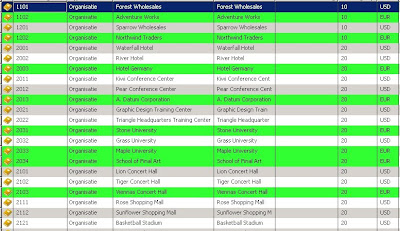
By using colors, you can enhance the visual representation of your data. Making it easier for users to grab their attention, focusing them on certain data. The data gets processed faster.
Just make sure you don't overdo it, making it hurt your users eyes ;-)


